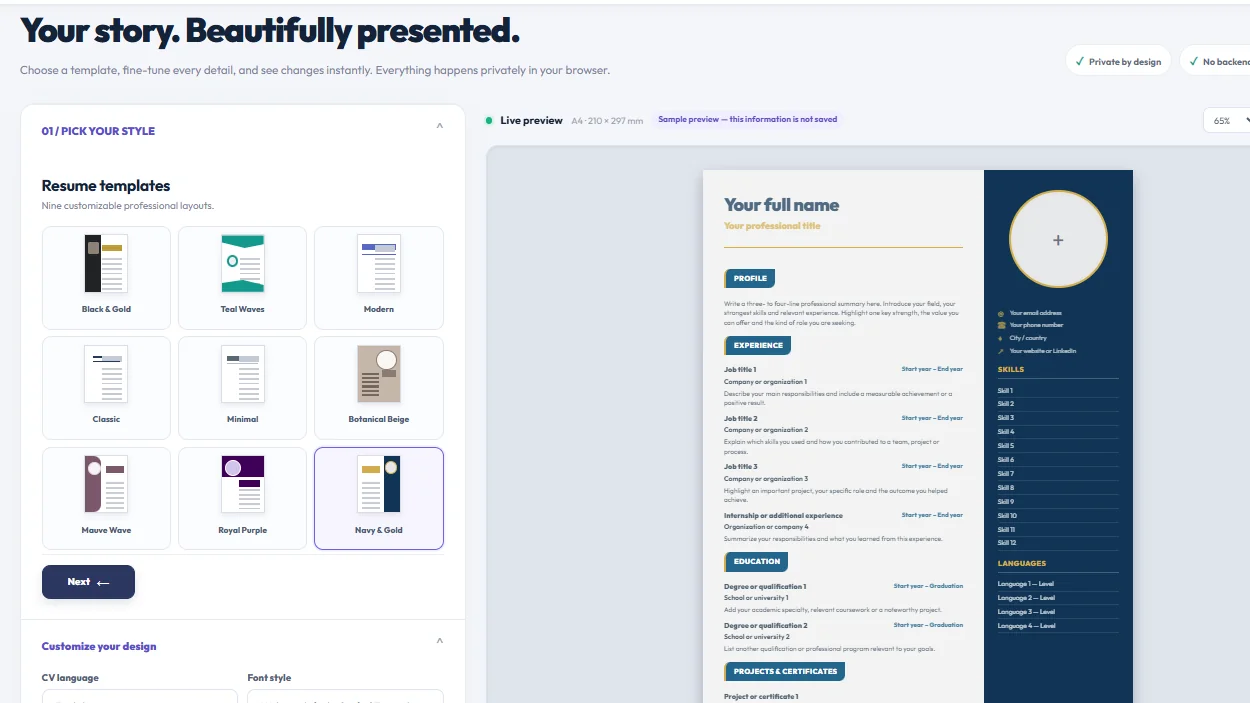
Want to create a professional resume that presents your experience and skills in a clear, polished layout? If you need an easier alternative to designing a CV from a blank page, ADAWATAI CV Builder brings ready-made templates, design controls and a live preview into one workspace.
You can choose from nine layouts, enter your personal and professional details, customize colors and typography, add a profile photo, organize sections, and download your finished resume using the available export options. PDF is shown as the default format in the supplied interface screenshot.
This guide walks you through the complete workflow, from choosing a template to exporting a backup of your resume data.
Open the free Resume BuilderIn this guide
What does ADAWATAI CV Builder offer?
The tool is designed to help you create a structured resume in one workspace. Instead of starting from a blank document, choose a layout, enter your information and adjust the design while checking the live preview.
- Ready-made templates: nine different visual layouts.
- Live preview: see the resume update as you edit your content and design.
- Visual customization: adjust colors, fonts, text size, line spacing and section spacing.
- Flexible sections: add a professional summary, experience, education, skills, languages and custom sections.
- Layout control: show or hide sections and move them between the main column and sidebar.
- Data management: export or import your editing data as JSON for backup and later reuse.
Step 1: Choose a resume template
Start in the Pick Your Style panel. The interface displays nine templates with different visual treatments. Select a template to see how it looks in the preview area.

The available template names shown in the interface are:
| Template | Visual direction |
|---|---|
| Black & Gold | High contrast with gold accents. |
| Teal Waves | A lively teal color treatment. |
| Modern | A contemporary, structured layout. |
| Classic | A traditional and straightforward look. |
| Minimal | A clean design with fewer decorative elements. |
| Botanical Beige | A softer beige palette. |
| Mauve Wave | A layout using mauve tones. |
| Royal Purple | A more prominent purple treatment. |
| Navy & Gold | A combination of dark navy and gold. |
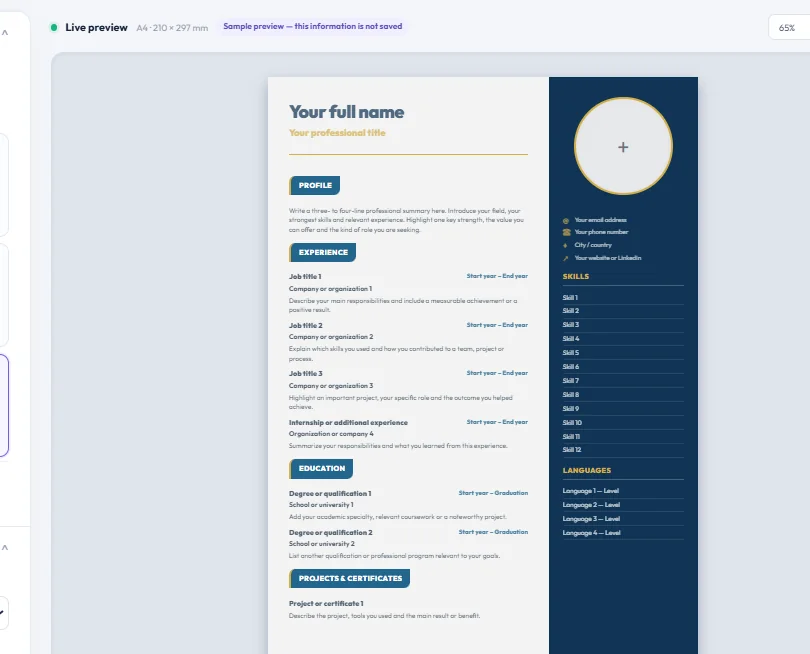
Try a few options before moving on. You can compare the designs in the preview and return to the template panel whenever you want to change your choice.
Step 2: Customize colors, fonts and layout
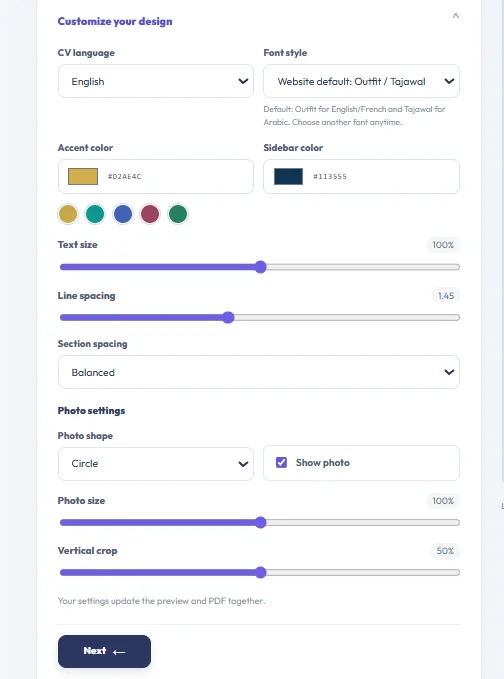
Open Customize your design to fine-tune the appearance of your resume.
CV language and font style
Choose the resume language from the dropdown. You can also select a font style. The interface notes that the website default uses Outfit for English and French and Tajawal for Arabic, while allowing you to choose another font from the menu.
Accent and sidebar colors
Use Accent color to change the main highlight color and Sidebar color to change the sidebar background. Preset color swatches are also available for quick selection.
Text size and spacing
- Text size: adjust the overall text scale.
- Line spacing: control the space between lines.
- Section spacing: choose how much space appears between resume sections.
Photo settings
If you want to include a profile photo, choose its shape, show or hide it, and adjust its size and vertical crop. The interface states that these settings update the preview and PDF together.
Step 3: Enter your personal details
Open the Personal details section and complete the contact information you want employers to see. Double-check your email address, phone number and professional links before exporting.
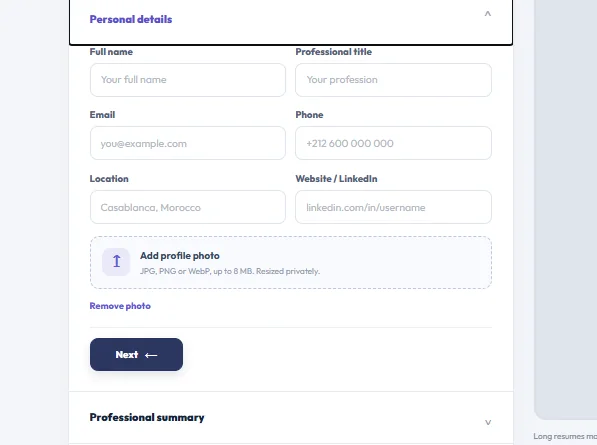
The visible fields include:
- Full name.
- Professional title.
- Email address.
- Phone number.
- Location.
- Website or LinkedIn profile.
You can also add a profile photo. The upload area accepts JPG, PNG and WebP files up to 8 MB, and the interface says the image is resized privately.
Tip: use a clear, appropriate photo if it suits the role and market you are applying to. Do not add contact details that you do not want to share with employers.
Step 4: Add your summary, experience, education and skills
After your personal details, move through the resume content sections. The tool presents each section as a separate expandable panel.
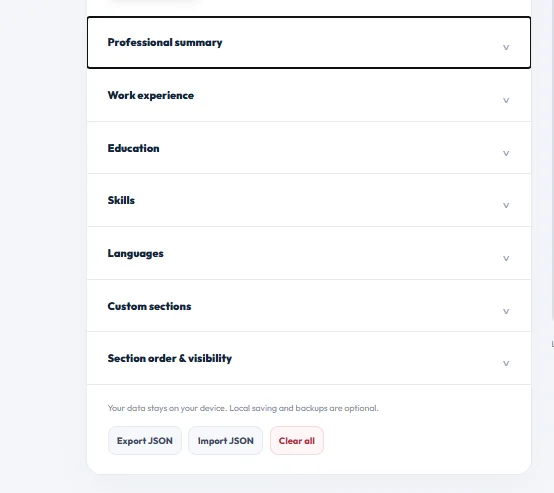
Professional summary
Write a concise introduction to your professional background, specialty and strongest qualifications. Tailor it to the role instead of relying on generic statements.
Work experience
Add relevant roles, internships or other experience. Include the position, organization, dates and the responsibilities or achievements you want to highlight.
Education
Enter your qualifications, schools or universities and dates. In many cases, listing the most recent qualification first makes the section easier to scan.
Skills
Add technical and professional skills that are genuinely relevant to the role. Specific skills are more useful than broad, unsupported claims.
Languages
List the languages you know and indicate your level for each one.
Custom sections
Use custom sections for relevant information that does not fit the standard panels, such as projects, certificates or volunteering, depending on the fields available in the editor.
Step 5: Reorder sections and control visibility
Open Section order & visibility to choose which sections appear in the resume. You can hide sections you do not need and move visible sections up or down using the arrow controls.
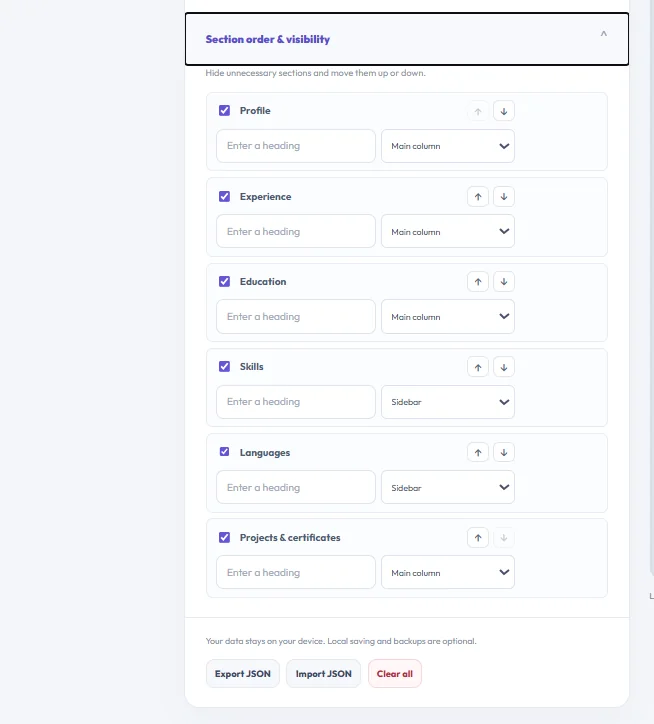
The panel also lets you edit a section heading and choose whether it belongs in the Main column or the Sidebar. Use this to give important information a clear position while keeping the page balanced.
Step 6: Review the live preview and download your resume
The resume preview appears beside the editing panel. Check it as you make changes and make sure the headings, text, spacing and photo look right.
The interface identifies the page as A4 (210 × 297 mm) and notes that longer resumes may continue onto more than one A4 page. Review every page before downloading, and avoid shrinking the text too much just to force everything onto a single page.
If the preview contains sample information, use Remove example before entering your own details. When your resume is ready, use Save if needed, choose an export format from the dropdown and click Download. PDF is shown as the default option in the supplied screenshot.
Create your resume nowPrivacy and JSON backups
The interface states that your data stays on your device and that local saving and backups are optional. At the bottom of the editor, three controls help you manage your resume data:
- Export JSON: export your resume editing data as a JSON file for backup.
- Import JSON: import a previously exported JSON file to restore your information and continue editing.
- Clear all: clear the current data and start again. Use this only when you are sure you no longer need the existing information.
Keep a JSON backup somewhere safe if you plan to update your resume later. Remember that the JSON file is a backup of your editable data, not a replacement for downloading the finished resume.
Tips for a more professional resume
- Choose a clear template that suits the role and industry.
- Write a short, tailored professional summary.
- List experience in reverse chronological order and focus on outcomes.
- Include skills that genuinely match the job requirements.
- Check your email, phone number and professional links carefully.
- Remove information that does not support your application.
- Review every page in the preview before downloading.
- Keep a JSON backup if you expect to update your resume in the future.
Frequently asked questions about ADAWATAI CV Builder
How many resume templates are available?
The interface shows nine templates: Black & Gold, Teal Waves, Modern, Classic, Minimal, Botanical Beige, Mauve Wave, Royal Purple and Navy & Gold.
Can I change the resume colors?
Yes. You can change the accent color and sidebar color, or choose from the available color swatches.
Can I change the font and text size?
Yes. The design panel includes font selection, text size, line spacing and section spacing controls.
Can I add a profile photo?
Yes. The upload area accepts JPG, PNG and WebP files up to 8 MB, and the interface says the image is resized privately.
Can I hide or reorder resume sections?
Yes. You can toggle sections on or off, move them up or down, edit headings and choose the main column or sidebar.
Can I back up my resume data?
Yes. Use Export JSON to create a backup and Import JSON to restore a previously exported file.
Does my data stay on my device?
The interface states that your data stays on your device and that local saving and backups are optional.
Can a resume span more than one page?
Yes. The interface notes that longer resumes may continue onto more than one A4 page, so review all pages before downloading.
Create your professional resume with ADAWATAI
Whether you are applying for your first job, updating your current resume or organizing your professional experience, ADAWATAI CV Builder gives you a practical way to choose a layout, customize the design, enter your information and review the result before downloading.
Choose a template, add your details and present your experience with clarity and confidence.
Open ADAWATAI CV BuilderADAWATAI — free tools and creative resources for everyone.