Need to remove the background from a product photo, portrait or design image—without signing up for another service or paying for an API? ADAWATAI Background Remover uses an AI model that runs directly in your browser.
No account or API key is required. Choose an image from your device, wait for local processing to finish, then download a transparent PNG. You can also preview the result on white, black or a custom solid color.
This guide uses BiRefNet Lite through the @bg0/browser library. Your image pixels are processed locally in the browser. The model file is downloaded from a public repository on first use and may be cached by your browser for later sessions.
Try the free background removerIn this guide
What is an AI background remover?
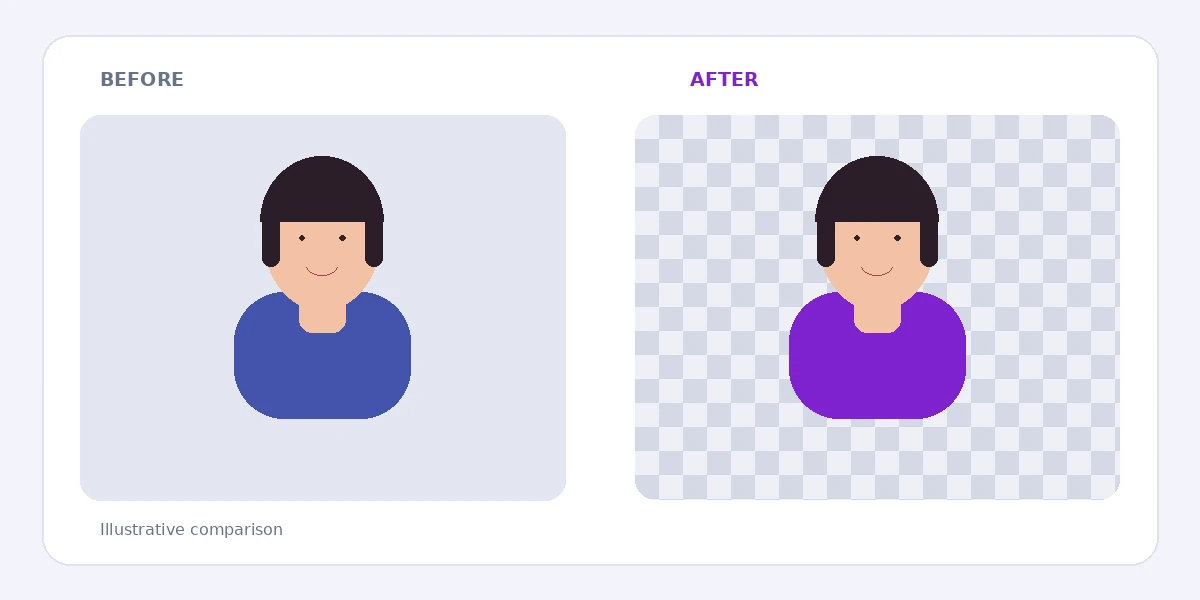
A background remover uses an image segmentation model to identify the main subject—such as a person, product or animal—and create a mask that separates it from the surrounding background.
The transparent result can be useful for online store product images, profile photos, advertisements, presentations, social media graphics and designs where you need to place an isolated subject over another background.
How does browser-only processing work without a database?
The tool does not need a database to store images or user accounts. When you select a photo, the browser reads it into memory and runs the AI model locally using WebGPU when supported or a compatible WASM path.
- No account: there is no sign-up flow.
- No API key: no key from an external AI provider is required.
- No image upload: your source photo is not sent to an ADAWATAI processing server.
- Model download: the model weights are fetched from a public repository on first use.
On desktop and Android, the lightweight model package is about 98.5 million bytes, or roughly 94 MiB. iPhone and iPad may use a different optimized variant. The first run can take longer depending on your device and connection. This is the model being downloaded—not your image being uploaded.
Step 1: Upload the image you want to edit
Open ADAWATAI Background Remover. Drag a picture into the upload area or choose one from your device.
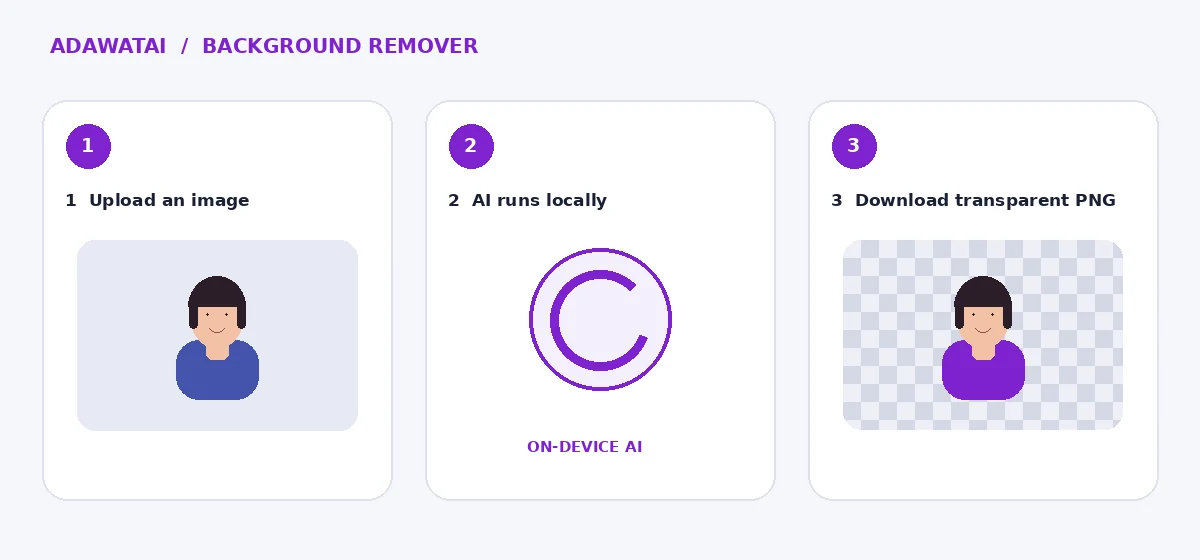
The tool supports JPEG, PNG and WebP, with HEIC and HEIF support depending on the browser. The maximum file size is 20 MB per image.
Step 2: Choose the edge quality
- Fast: useful for a quick first result and devices where processing time matters.
- Best quality: runs additional refinement steps to improve edge details, which may take longer.
The tool uses BiRefNet Lite to avoid downloading a very large model on every visit. Actual speed depends on your device, available memory and browser.
Step 3: Compare the original and the result
Click Remove background. A progress indicator shows whether the browser is preparing the model, downloading it or processing the image. When the job finishes, drag the before-and-after slider to inspect the cutout.
Step 4: Choose a background and download the PNG
Choose transparent, white, black or a custom color. With Transparent selected, the PNG keeps its alpha transparency. If you choose a solid color, it is composited into the exported image.
Remove a background nowPrivacy and AI model size
It is important to distinguish between downloading the model and processing the photo. The browser downloads the model weights from a public repository, but the user’s image remains in the browser and is not sent to an external background-removal service.
The browser library is open source under Apache 2.0, and the BiRefNet model weights referenced in its third-party notices are MIT licensed. Review the upstream source and license details in the official resources below.
Tips for better results
- Use a clear, well-lit image.
- Choose a photo where the subject stands out from the background.
- Avoid very blurry or heavily compressed source images.
- Inspect fine hair, small edges and transparent areas before using the result.
- If the cutout is not ideal, try a clearer original or crop closer to the main subject before processing.
Frequently asked questions
Do I need to register on an external website?
No. You do not need an account or API key. The tool runs the model in your browser.
Are my images uploaded to a server?
No. Image processing happens locally. The file downloaded from the internet is the AI model, not your photo.
Why is the first use slower?
The browser downloads the AI model, and the lightweight desktop/Android version is about 94 MiB; iPhone and iPad may use a different optimized variant.
Does it work on mobile?
Yes, but performance depends on the device and browser. Older phones may take longer.
Does the tool need a database?
No. It does not store user images or accounts on a server.
Start removing image backgrounds for free
Choose an image, wait for local processing, review the cutout and download the PNG.
Open ADAWATAI Background RemoverOfficial technical resources
- BG0 browser-only background removal documentation
- BG0 source code and license notices
- BiRefNet Lite model repository
ADAWATAI — Free tools and creative resources for everyone.