Need a natural-sounding AI voice for a video, lesson, product demo, ad or social media post? This guide shows you how to use ElevenLabs Text to Speech from the first screen to the final audio download. It is based on the screenshots you provided, with the key interface areas cropped and marked so readers can follow along.
We will start with the dashboard, move into the Text to Speech editor, find a suitable voice, review the model and voice settings, prepare a script, generate speech and download the result. There is also an optional section about voice creation and cloning for readers who need a more customized voice.
This tutorial focuses on Text to Speech: turning written text into spoken audio. You do not need to clone a voice to get started; you can select a ready-made voice from the library and generate speech directly.
Open ElevenLabs Text to SpeechGuide contents
- What is ElevenLabs Text to Speech?
- Step 1: Understand the dashboard
- Step 2: Explore the Text to Speech editor
- Step 3: Find the right voice
- Step 4: Choose a model and adjust voice settings
- Step 5: Prepare your script
- Step 6: Generate and download your audio
- Optional voice creation and cloning tools
- Best practices for professional voiceovers
- Frequently asked questions
What is ElevenLabs Text to Speech?
Text to Speech converts written words into spoken audio. You enter or paste a script, select a voice, choose a model and adjust the available settings, then generate the recording. It can be useful for video voiceovers, tutorials, presentations, marketing content, explainers and narration.
Three elements have a major influence on the result:
- The script: the words, punctuation and structure of your text.
- The voice: the tone, accent, rhythm and personality of the speaker.
- The model and settings: how the system interprets the script and produces the speech.
ElevenLabs’ official guide explains that voice selection has the greatest impact, followed by model selection and then voice settings. In other words, start by choosing a suitable voice instead of changing every slider at once..
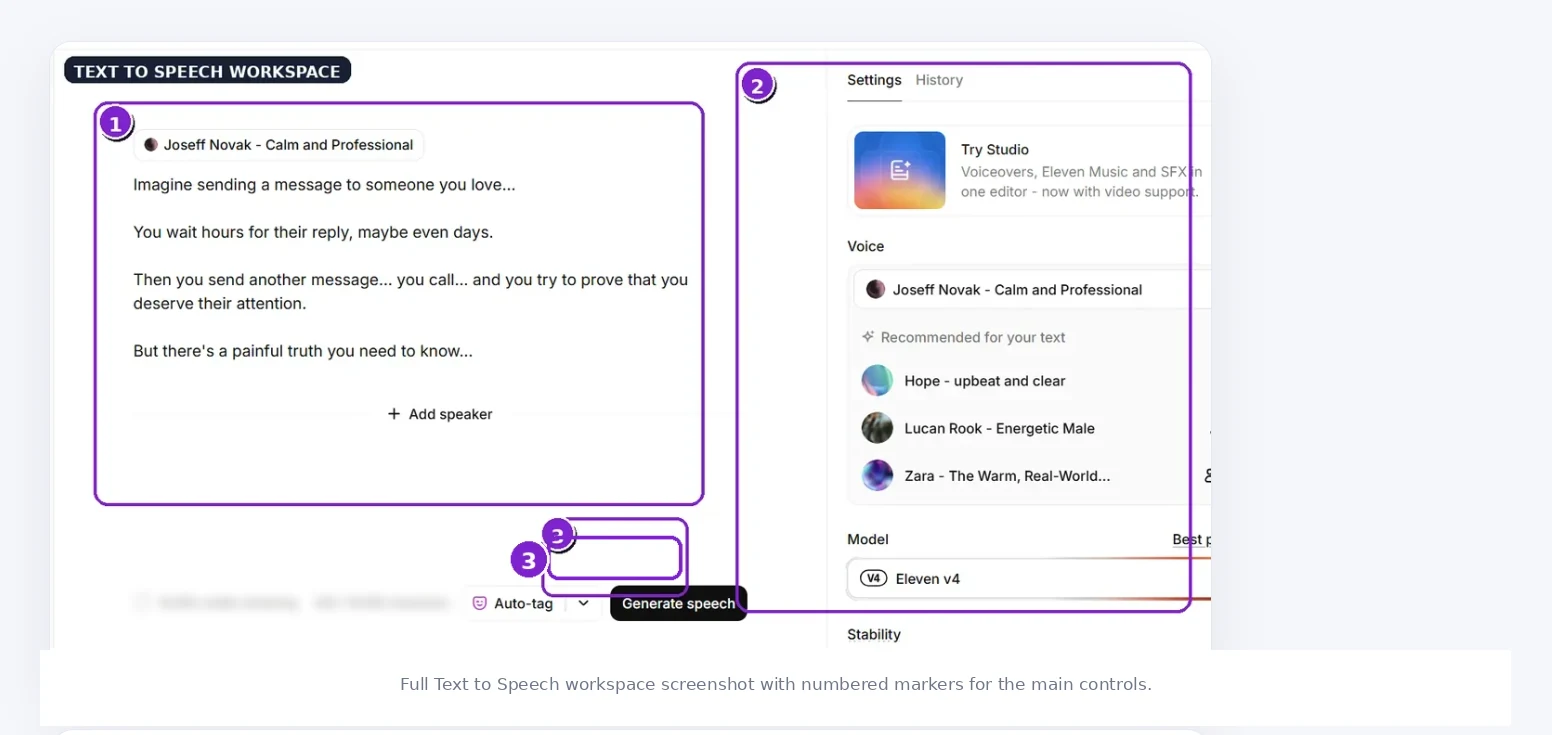
A full look at the Text to Speech workspace
Before exploring each control, take a look at the complete workspace. The purple numbered markers help you connect the instructions to the areas you will use when generating speech.
Step 1: Understand the dashboard
After signing in, you arrive at the main workspace. The left navigation gives you access to the platform’s different areas. In your screenshot, the visible sections include Home, Voices, Studio, Flows, Chat and Assets, along with pinned tools such as Text to Speech, Voice Creation, Sound Effects, Speech to Text and Dubbing.
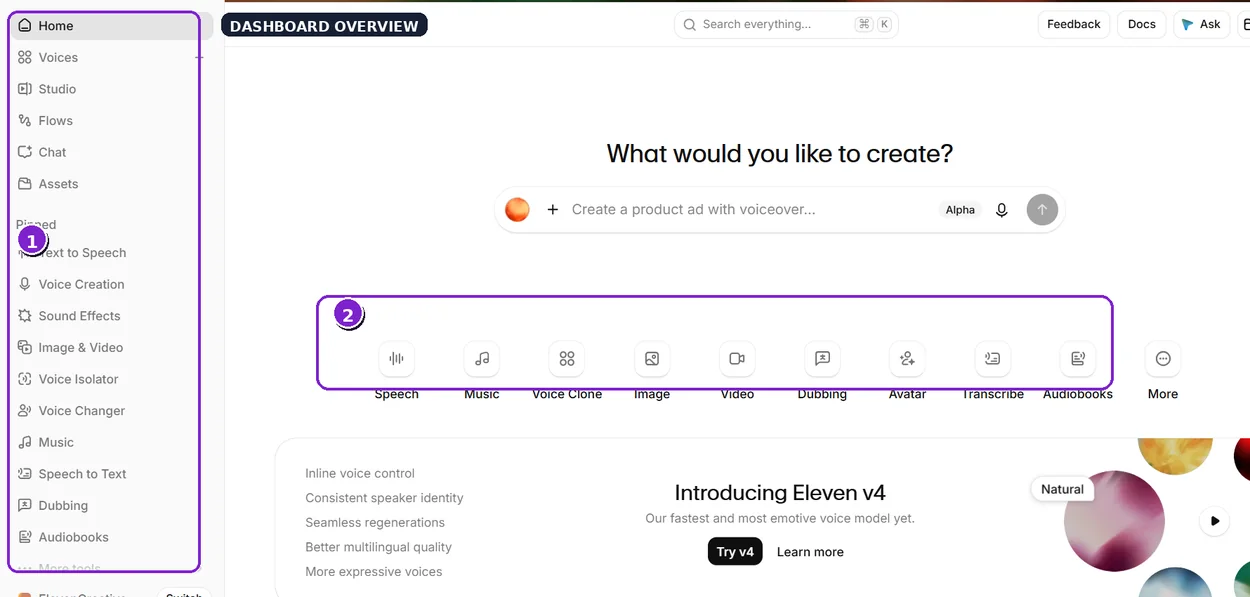
For a spoken version of a written script, focus on Text to Speech in the left sidebar. You can return to Home whenever you want to explore other features, but you do not need to open every tool to create your first voiceover.
The center of the dashboard also shows quick creation shortcuts such as Speech, Music, Voice Clone, Video, Dubbing, Transcribe and more. Choose the speech-related route when your goal is to turn written text into spoken audio.
Step 2: Explore the Text to Speech editor
Once you open Text to Speech, the workspace becomes more focused, as shown in the full screenshot above. Your screenshot shows three main areas: the script editor on the left, the Settings panel on the right, and the usage indicators and generation button near the bottom.
1. The script editor
Type or paste the text you want to convert into the large editor area. The screenshot contains sample English copy; replace it with your own script, divide it into paragraphs and proofread it before generating.
2. Current voice and recommended voices
The Settings panel shows the currently selected voice and a list of voices recommended for your text. Open the voice selector if you want to compare alternatives or try a different delivery style.
3. Model and Stability
The screenshot shows the model selector with Eleven v4 selected, as well as a visible Stability control. We will explain what these mean in a dedicated section.
4. Character count, credits and Generate speech
At the bottom of the editor, you can see a character counter, a credits indicator, the Auto-tag option and the Generate speech button. These indicators change according to your script, account and selected model. The credit balance shown in your screenshot belongs to that account at the time it was captured; it is not a universal allowance for every user.
The editor also shows Add speaker. This can be useful when you are structuring dialogue or working with more than one speaker, where that workflow is supported by the selected model and interface.
Step 3: Find the right voice in the Voice Library
Voice selection is one of the most important decisions in the workflow. A voice that works well for a short advertisement may not suit an educational lesson or an audiobook. Open Voices and explore the library, or use the voice selection window shown in your screenshot.
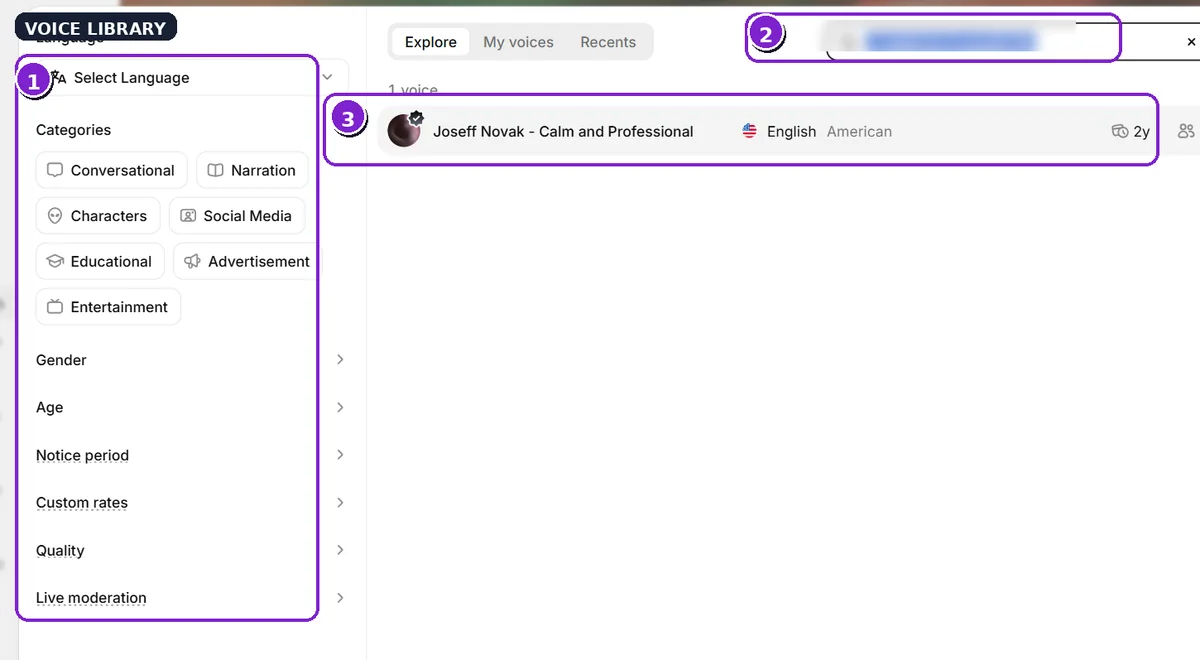
The visible filters help narrow down the options:
- Language: select the language you need.
- Categories: options shown include Conversational, Narration, Characters, Social Media, Educational, Advertisement and Entertainment.
- Gender and Age: refine the results according to the style you want.
- Quality: use the quality filter when it is available in your interface.
- Search: look up a voice by name, keyword or voice ID.
The filters visible to you may change as the product is updated. ElevenLabs’ official Voice Library documentation describes search by name, keyword or voice ID, as well as filters for language, accent and category..
Choosing a voice for Arabic content
If your script is in Arabic, look for a voice trained on Arabic or on an accent close to your target audience. A voice that sounds excellent in English may not pronounce Arabic naturally. Listen to a sample and test a short Arabic sentence before generating a full script.
Step 4: Choose a model and adjust voice settings
After choosing a voice, review the model available in your account. Your screenshot shows Eleven v4. Current ElevenLabs documentation describes the v4 family as including Eleven v4 for high-quality content creation and Eleven v4 Turbo for workflows that need faster response. The exact options shown can depend on your account and the current interface.
The best model depends on the language, content type and output you need. For a video voiceover or lesson, focus on quality and listen to a sample. Real-time conversational applications generally need a low-latency model when one is available.
What does Stability do?
Stability controls how consistent the voice performance is and how much variation can appear between generations. In general:
- A lower value may allow more expressive variation, but can make some results less consistent.
- A higher value may make the delivery steadier, but can sound monotonous if pushed too far.
- Start with the default setting and make small adjustments after listening to the result.
ElevenLabs notes that generations are not perfectly deterministic, so the same initial settings do not guarantee identical output every time. Make small changes and keep track of the settings that work best for your voice..
The official model overview lists Eleven v4 as supporting more than 90 languages, including Arabic. Even so, the voice you choose should match the language and accent you want to produce..
What is new in Eleven v4?
ElevenLabs describes v4 as a more expressive model with stronger contextual delivery and multi-speaker dialogue. The v4 and v3 models also support audio tags: short instructions inserted into the script to guide delivery, such as [whispers], [laughs] or [excited]. Use these only with a model that supports them; they do not behave the same way across every model.
Example:
[whispers] I have something important to tell you.
This tag asks the model to deliver the following line in a whisper. Test it with a short sample first, because the result can vary depending on the voice, model and context..
Step 5: Prepare your script for natural speech
Audio quality does not depend on the model alone. The way you write your script also affects pronunciation, pacing and delivery. Before clicking Generate speech, read the text as if you were going to say it aloud to another person.
Simple ways to improve your script
- Use clear sentences: split long sentences into shorter units.
- Add punctuation: commas and full stops help shape rhythm and pauses.
- Check names and numbers: write names, acronyms and technical terms the way you want them pronounced.
- Avoid unnecessary language mixing: keep the script consistent when you want one clear language.
- Split long content into sections: review each part and keep the voice consistent.
- Test a short passage first: confirm the voice is suitable before generating the whole script.
A note for Arabic scripts
If your text includes words that can be pronounced in more than one way, proper names or technical terms, try an alternative spelling or add diacritics where useful. Listen to the sample and fix the specific word that sounds wrong instead of rewriting the whole script.
Step 6: Generate, review and download your audio
Once your script, voice and model are ready, click Generate speech. Wait for the generation to finish, then listen to the full recording—or at least the important sections—before using it in your project.
- Listen to the opening to make sure the recording starts naturally.
- Check the pronunciation of names, numbers and foreign words.
- Review pauses, pacing and tone, especially between paragraphs.
- If something sounds wrong, edit the script or voice settings and generate again.
- When you are satisfied, use the download button or open History to access previous generations.
According to the official ElevenLabs guide, you can download a new generation immediately or return to History for previous recordings. The documentation lists MP3 and WAV, with additional options such as M4A and FLAC through advanced download settings. The exact button location may vary with screen size and interface updates..
Optional voice creation and cloning tools
If you want a custom voice or a more distinctive audio identity, the Voice Creation page in your screenshot shows three routes. These are not required for basic Text to Speech, but they can be useful for more advanced projects.
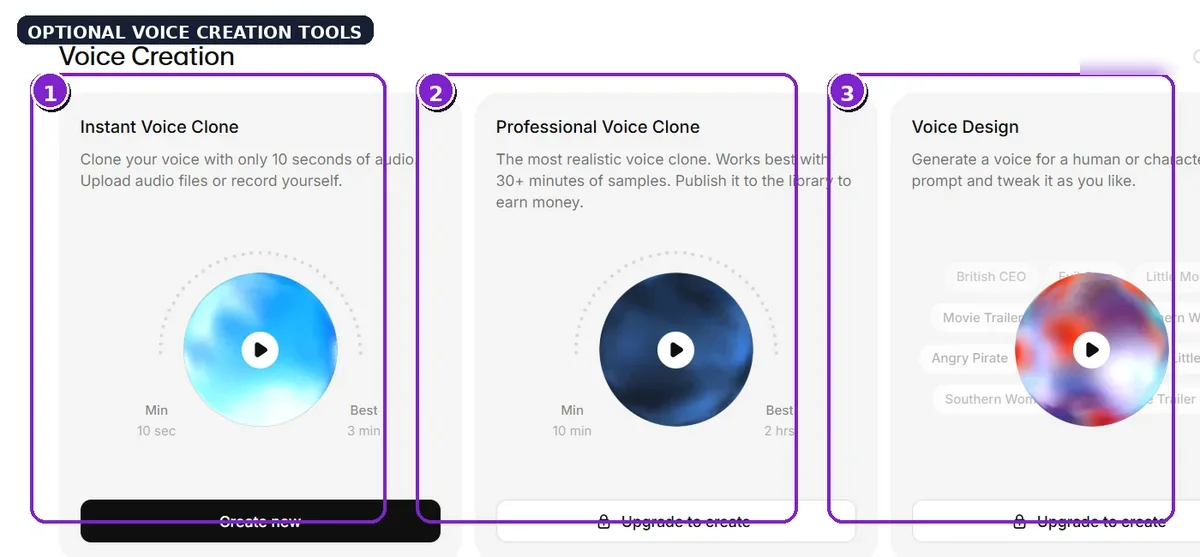
- Instant Voice Clone: quickly create a clone from a short audio sample.
- Professional Voice Clone: a more involved workflow that uses longer samples.
- Voice Design: create a voice from a written description rather than uploading a reference recording.
What happens in Instant Voice Clone?
The next screen shown in your screenshot provides an area to upload audio files or record audio directly. It also displays guidance about the minimum sample length and a suggested longer sample.
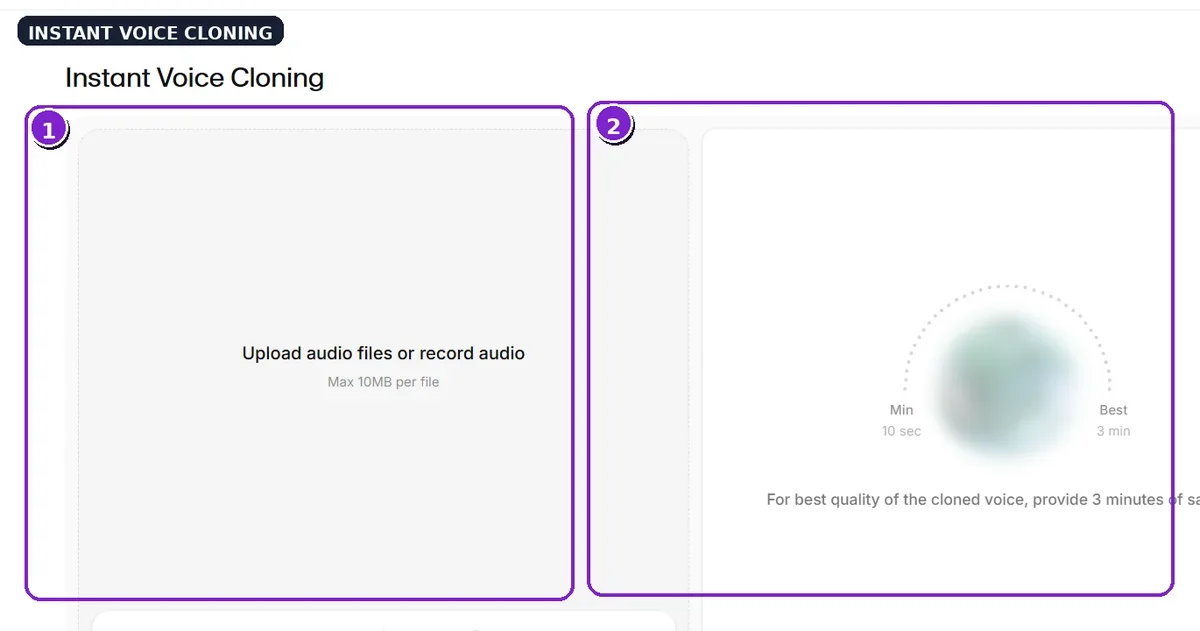
There is a small difference between the wording in your screenshot and the current official documentation: the screenshot displays a 10-second minimum and indicates 3 minutes as best, while the current ElevenLabs guide generally recommends around 1–2 minutes of clear audio for Instant Voice Cloning. Follow the requirements displayed in your own account before uploading samples.
Important: do not clone another person’s voice unless you have the right and explicit consent to do so. If you are cloning your own voice, use a clean recording with as little background noise and room echo as possible.
Best practices for professional AI voiceovers
- Choose the voice before fine-tuning: a voice that suits the language and audience matters more than endless slider changes.
- Test a short sample: check the tone before generating a long script.
- Write the way people speak: natural phrasing often works better than dense, formal sentences.
- Keep delivery consistent: use the same voice and model across related sections when consistency matters.
- Use effects sparingly: emotion tags are most useful when they support the meaning.
- Review the final file: listen again after downloading because that is the file you will actually publish.
- Check usage rights: especially for commercial projects and voice cloning.
Frequently asked questions about ElevenLabs Text to Speech
Can ElevenLabs generate speech in Arabic?
Yes. Eleven v4 is listed as supporting more than 90 languages, including Arabic. Pronunciation and accent still depend on the voice you select, so test a voice trained on Arabic or close to your target accent.
Do I need voice cloning to use Text to Speech?
No. You can select a ready-made voice from the library, enter your script and generate speech. Voice cloning is optional.
How do I choose the best voice?
Start with the language, accent and category that fit your content, then listen to short samples. Test the voice with your own script because performance can vary from one text to another.
What does Stability do?
It controls consistency and variation between generations. Lower values may allow more expression, while higher values can produce steadier delivery. Start with the default and adjust gradually.
Can I download MP3 or WAV files?
Yes. The official documentation describes MP3 and WAV downloads, with M4A and FLAC available through advanced download options in History.
Is ElevenLabs completely free?
Usage limits, credits and available features depend on your plan and account and can change. Check the official pricing page before relying on a specific allowance.
Do I need to clone a voice to create a voiceover?
No. A ready-made voice is enough. Use cloning only when you need a custom voice and have the rights and consent required for the sample.
Why should I test a short sample before generating a full script?
A short test helps you confirm the voice, language, pronunciation and pacing before spending time or credits on a longer generation.
Start turning text into speech with ElevenLabs
You now have a clear workflow: open Text to Speech, prepare your script, choose a voice that fits the language and content, review the model and settings, then generate and listen before downloading. You do not need every advanced feature to begin; start with the basics and explore Voice Creation only if you need more customization.
Start with a short script, choose your voice carefully and create audio that supports your message.
Try ElevenLabs Text to SpeechOfficial resources for further learning
- ElevenLabs Text to Speech guide
- Voice Library documentation
- Instant Voice Cloning guide
- ElevenLabs models overview
ADAWATAI — free tools and creative resources for everyone.